
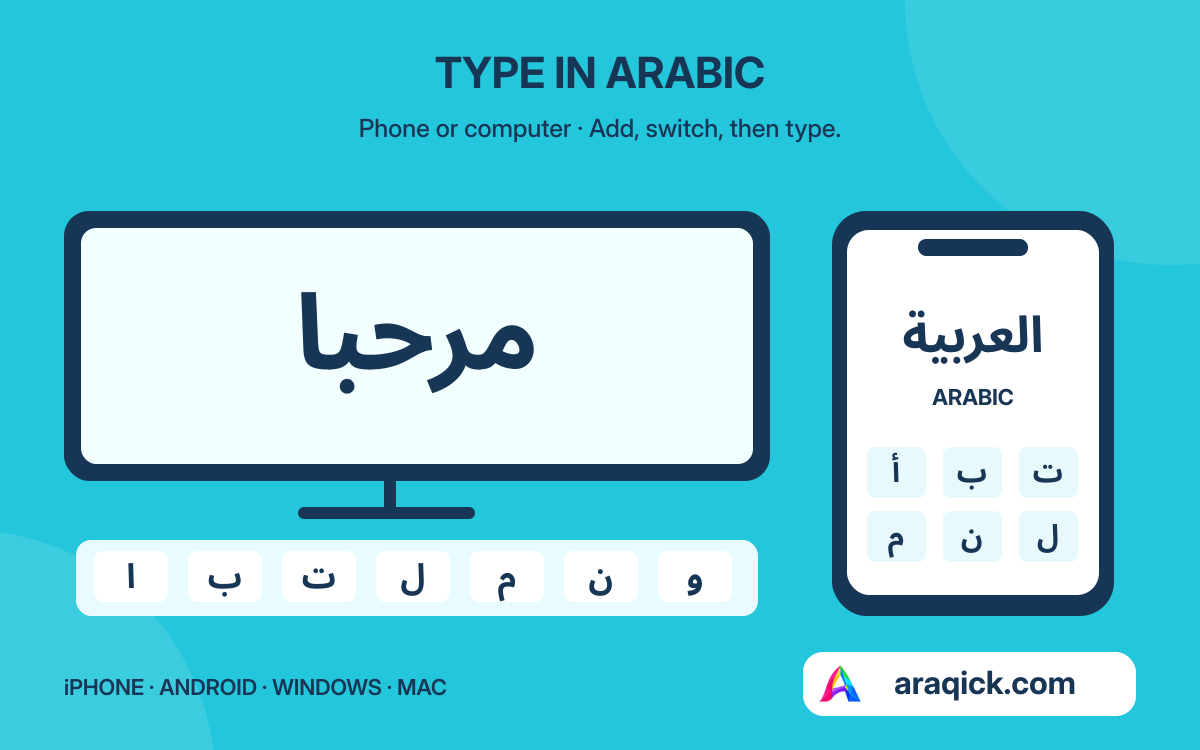
To type in Arabic, add an Arabic keyboard or input source, switch to it, then type normally. Your device joins letters automatically; you do not reverse their order or choose separate initial and final shapes. The steps below cover iPhone, Android with Gboard, Windows 11 and macOS. Menu labels can vary by version and device.
01How do I add Arabic on iPhone?
Open Settings → General → Keyboard → Keyboards → Add New Keyboard, then choose Arabic. Open Notes or another text field. Touch and hold the globe/keyboard-switch key and select Arabic.
Adding a keyboard is different from changing the phone’s display language. You can keep your existing keyboard and switch between them. Try typing مرحبا (marhaba, hello), then return to your other keyboard.
02How do I add Arabic on Android?
For Gboard, open a text field and use the keyboard’s Settings button. Choose Languages → Add keyboard → Arabic, select a layout and tap Done. If Settings is hidden, open the keyboard’s features menu first.
Touch and hold the space bar to choose a language. If your phone uses Samsung Keyboard or another app, its settings will differ; look for its language or keyboard settings. Adding Arabic in Gboard does not change Android’s display language.
03How do I add Arabic on Windows 11?
Open Settings → Time & language → Language & region. Open a language’s three-dot menu, choose Language options, then use Add a keyboard under Keyboards. Select the Arabic layout you need.
If it is unavailable, add Arabic through Add a language, follow the installation prompts, then return to its Language options. You can keep your current Windows display language. Switch layouts with Windows key + Space or the taskbar input indicator.
04How do I add Arabic on a Mac?
Choose Apple menu → System Settings → Keyboard. Under Text Input, click Edit, then the add (+) button. Find Arabic, choose an input source and click Add.
Select it from the Input menu when typing. Open Keyboard Viewer from that menu to see the active key layout. The letters printed on a physical English keyboard do not change, but its keys now produce the selected Arabic characters.
05Do I need to type joined letter shapes?
A short typing target
أَنَا أَتَعَلَّمُ الْعَرَبِيَّةَ
ana ataallamu alarabiyya
I am learning Arabic.
Type the underlying letters in reading order. The font and app choose their joined shapes. Put spaces between words, not between the letters of one word. To form لا, type lam then alif; the combined appearance is handled automatically.
Keep ة distinct from ه, and ى from ي. Correct spelling is more useful than a visually similar substitute.
06How do I type Arabic vowel marks?
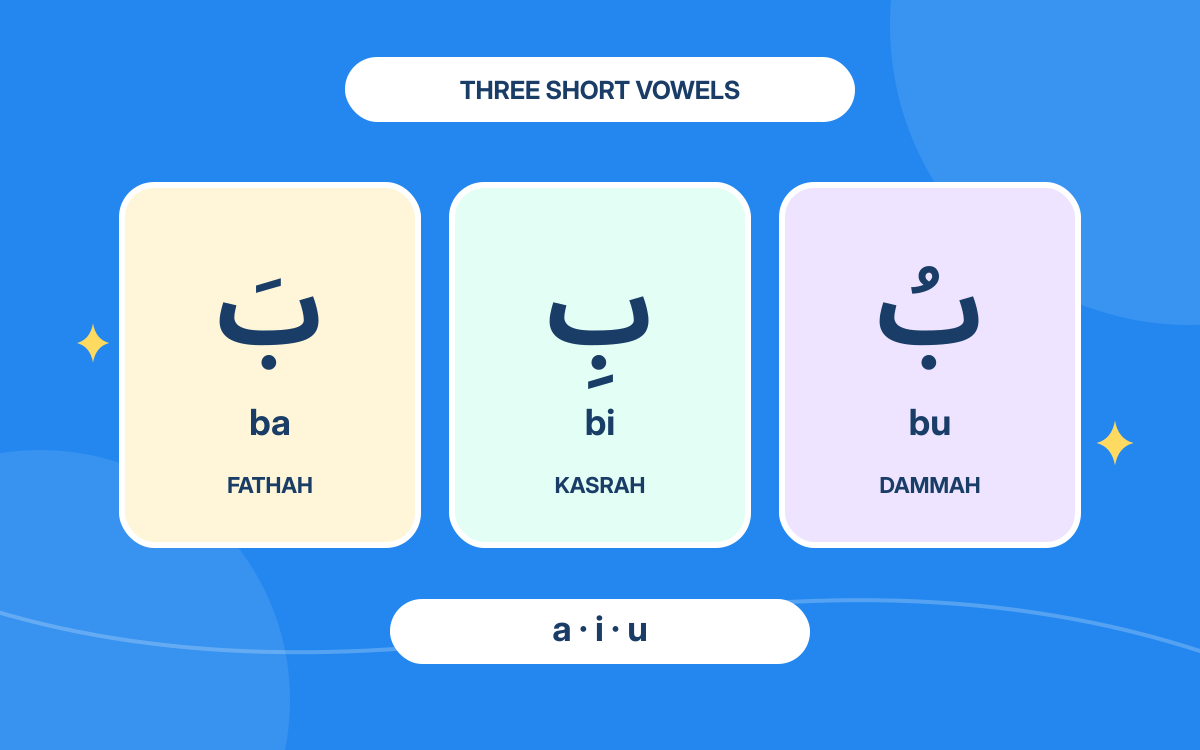
Enter the letter first, then its mark: ب followed by fathah produces بَ. Repeat for kasrah بِ and dammah بُ. Marks are separate from the dots that belong to letters.
Some mobile layouts reveal marks by holding a diacritic or tatweel ـ key; others use an extra-symbol panel. On computers, inspect the active layout with its on-screen keyboard or Keyboard Viewer, including modifier keys. Mark shortcuts differ across layouts. The reference chart shows what to look for.
07Why do punctuation or numbers look misplaced?
For an Arabic paragraph, choose the editor’s right-to-left paragraph direction where available. Right alignment alone only changes where a line sits. Numbers and English runs normally retain their own left-to-right order inside Arabic text.
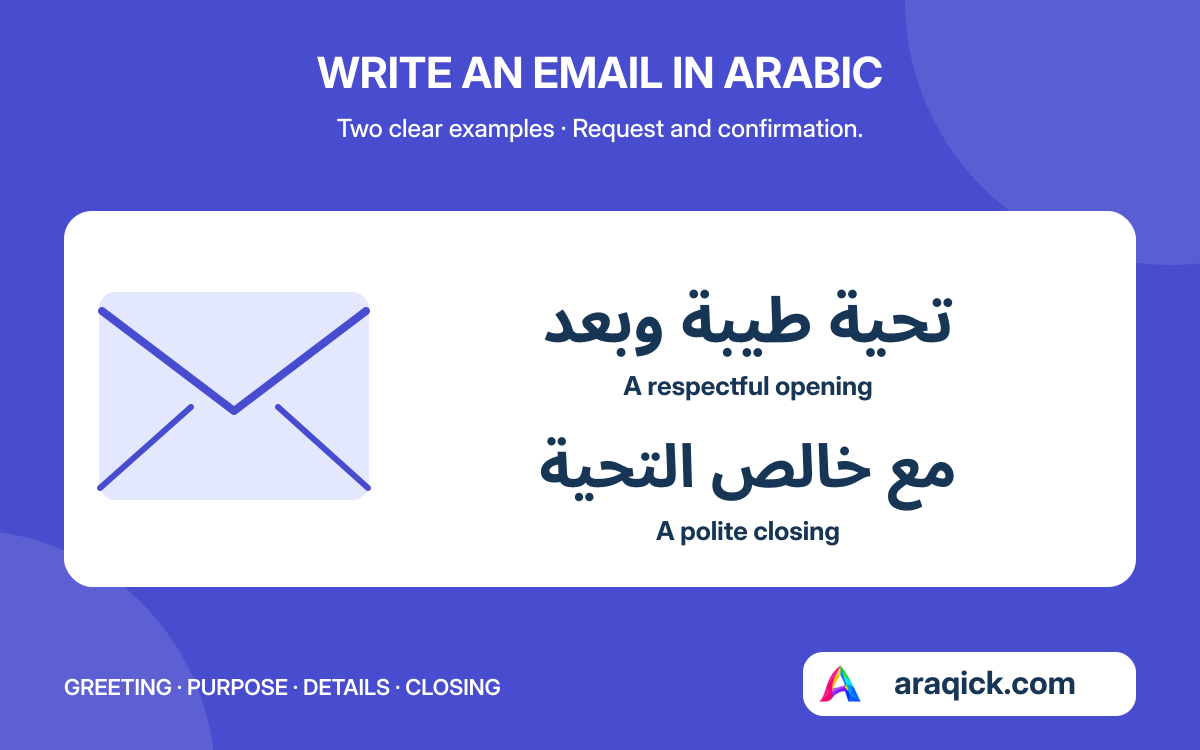
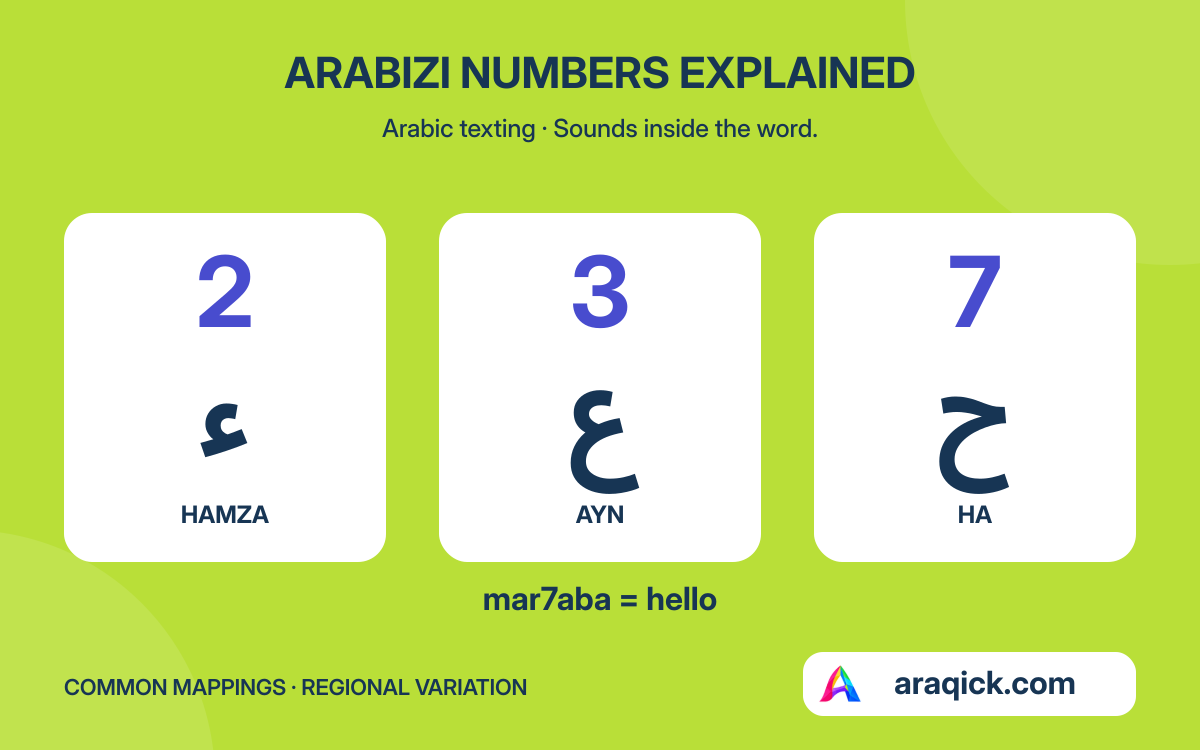
Do not reverse characters manually or insert spaces inside words to fix direction. Check the paragraph setting, active keyboard and font. Practise with an Arabic email and review vowel marks or Arabizi versus Arabic script.
What to remember
- Add an input source, then switch to it when needed.
- Type normal letters; joining is automatic.
- Use the active layout’s marks and paragraph direction controls.
Your reference shelf
Open a guide whenever you need it.
A small typing testType each line in a notes app, then compare the result.
| Try this | Check this |
|---|---|
| مرحبا | The letters join without spaces inside the word. |
| أنا أتعلم العربية | Spaces separate three words; hamza remains in أنا. |
| لا | Lam followed by alif forms the combined shape. |
| بَ بِ بُ | The vowel marks attach to their letters. |
| الدرس 12 | The number remains 12, not 21. |
Setup paths were checked against the official support pages in October 2026. Keyboard apps and operating-system versions may label controls differently.
Marks and spelling keys to recogniseExact key positions depend on the active Arabic layout.
| Item | Example | Purpose |
|---|---|---|
| Fathah | بَ | Short a after b |
| Kasrah | بِ | Short i after b |
| Dammah | بُ | Short u after b |
| Sukun | بْ | No following short vowel |
| Shaddah | بّ | Doubled consonant |
| Hamza forms | أ إ ؤ ئ ء | Choose the spelling the word requires. |
| Arabic punctuation | ، ؛ ؟ | Comma, semicolon and question mark |
Sources & further learning
References for the language explanations and learning guidance.